 JR DevTools
How to bulk edit test case steps in Azure DevOps (without the Excel add-in)
Changing a label in the same step of fifty test cases, or fixing a typo in expected results, means opening every test case one by one. The built-in alternatives each have a catch: a grid that needs Test Plans access, an Office add-in for Windows only, or a CSV round trip. Here is what works, and where it stops.
Install from the Marketplace See how it works
1. The grid view in Test Plans (built in)
Open a test suite in Test Plans and switch the view to Grid. You can edit the steps of several test cases in a grid in the browser. Full editing needs a Basic + Test Plans access level (or an equivalent subscription).
Good: built in, nothing to install. Limit: it works one test suite at a time, so test cases from a query or from several suites don't end up in one view, and everyone who edits needs the Test Plans license.
2. Open in Excel (Office add-in)
Test cases can be opened in Excel with the Azure DevOps Office Integration add-in, where each step is a row. It is Windows only and needs the add-in to work, which it doesn't always do; see Azure DevOps Excel add-in not working.
3. CSV export and import in Test Plans
Test Plans can export test cases to a CSV file and import a CSV file back, which works on any operating system. The usual caveats of a CSV round trip apply: formatted text comes through as HTML, and a mistake only shows up at import time. Check the exact columns it supports before you rely on it for existing test cases.
Where Bulk Editor fits
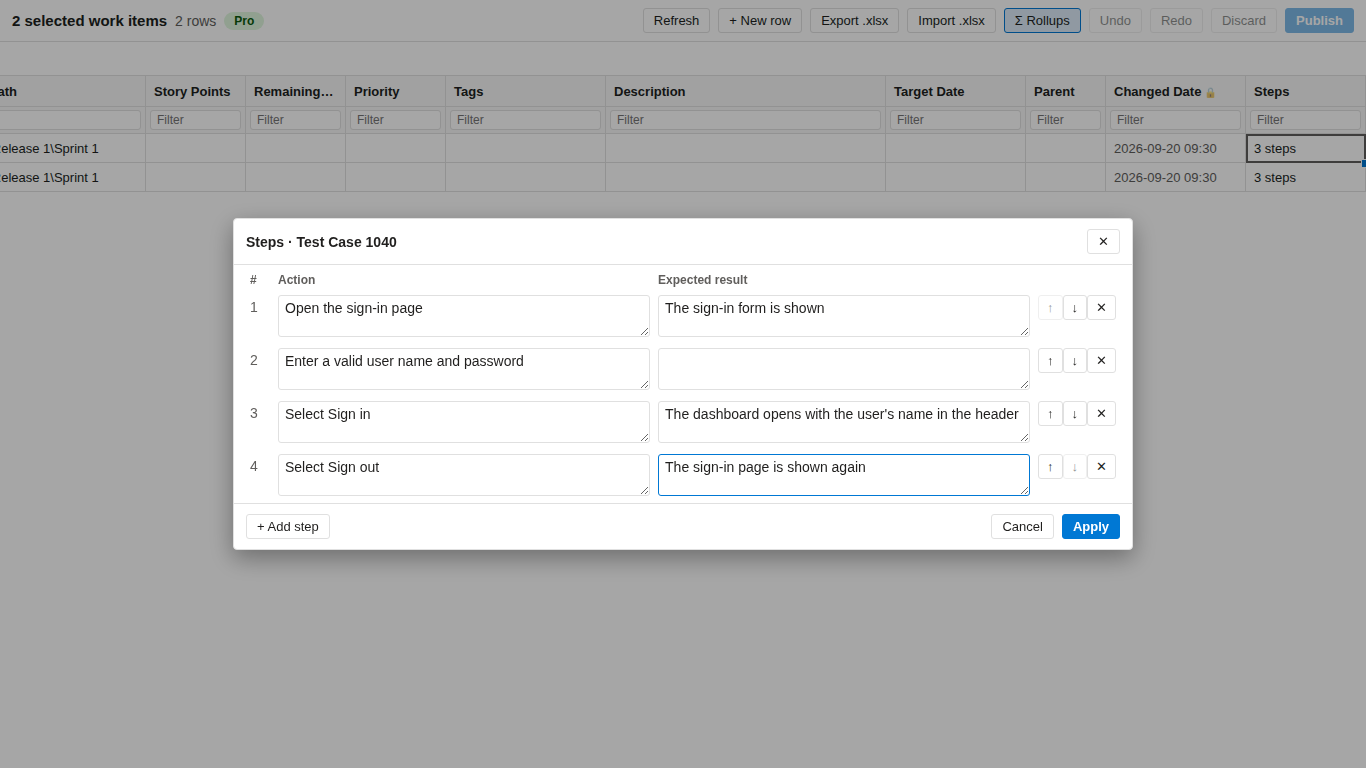
Bulk Editor (made by us) opens a query or a backlog selection in a spreadsheet-like grid. Test Case rows get a Steps column that shows a count such as 5 steps, and a panel to open them.
- Panel (Pro): add, remove, move and change steps, as a table of action and expected result, and publish them with your other edits. On the free plan you can read the steps.
- Formatted and shared steps stay as they are: they are shown but never rewritten.
- Excel export: a clean .xlsx with one row per step, with the columns Test Step, Step Action and Step Expected, the same layout as the Azure Test Plans export. Export is on the free plan.
- Excel import (Pro): read the file back, and only real changes are applied.
Limits: steps are edited as plain text, and attachments on steps aren't shown. Bulk Editor is available for Azure DevOps Services and Azure DevOps Server 2022 or later, and works on a Mac.
Which option should I pick?
| Situation | Best option |
|---|---|
| Edit the steps of the test cases in one suite, and you have Test Plans access | The grid view in Test Plans |
| You are on Windows and the Excel add-in works for you | Open in Excel |
| Create test cases from a file, once | CSV import in Test Plans |
| Change steps across suites or queries, on a Mac or without the add-in | Steps panel or .xlsx round trip in Bulk Editor |
Related guides
- How to bulk edit Azure DevOps work items without Excel
- Azure DevOps Open in Excel alternatives (2026)
- Azure DevOps Excel add-in not working: Team tab, TF80012, crashes
- Bulk Editor: features, pricing and free plan