 JR DevTools
Azure DevOps Open in Excel alternatives (2026)
The Azure DevOps Open in Excel extension from Microsoft DevLabs is the classic way to edit many work items in a spreadsheet. It is free, but it only works on Windows and is often hard to get running. Here's how it works and what you can use instead.
Install from the Marketplace See how it works Watch the 1-minute video
Disclosure: we make Bulk Editor, one of the options below. We've tried to keep this comparison fair; corrections are welcome at support@jr-devtools.com. Last checked: October 2026.
What “Open in Excel” actually is
The Marketplace extension
Azure DevOps Open in Excel
(about 92,000 installs, rated 2.2 out of 5) only adds a menu item that opens a tfs:// link. The real
work is done by the desktop add-in Azure DevOps Office Integration, a Windows-only COM add-in for Excel
that has to be installed on every computer. That explains the most common complaints in the extension's Q&A
and reviews:
- install and client errors such as TF80012, TF80070 and VS403191;
- Excel crashing at sign-in, or the add-in disappearing from Excel;
- no support for Mac or Excel on the web;
- the menu option disappearing after Azure DevOps UI changes (see issues #24 and #16 on GitHub).
When it works, it works well, and there is no need to replace it. If you're stuck, see Azure DevOps Excel add-in not working: fixes.
The alternatives
1. Built-in multi-select bulk edit (free)
Select several work items in a backlog or query and use the context menu to change a few fields at once. See how to edit multiple work items at once.
Good: built in, nothing to install. Less good: every selected item gets the same value, only a few fields are available, and there is no grid.
2. Open in Excel with Office Integration (free)
The option above: full Excel, with pick lists and validation, and a warning before you overwrite someone else's change.
Good: free, and you get everything Excel can do. Less good: Windows only, a desktop install on every computer, and the install problems listed above.
3. CSV export and import (built in)
Export a query with Export to CSV, edit the file in any spreadsheet app, and bring it back with Boards → Work items → Import work items. Rows with an ID update existing items, rows without one create new items.
Good: works on any OS, different values per row. Less good: rich-text fields such as Description are exported as raw HTML, errors only show up at import time, and nothing warns you if someone changed a work item after your export. More in how to bulk edit work items without Excel.
4. Bulk Editor (free plan, Pro from $12 per organization per month)
Bulk Editor is our extension. It opens a query, a backlog selection or any list of work items in a spreadsheet-like grid inside Azure DevOps, in the browser:
- nothing to install on your computer; works on Windows, Mac and Linux;
- paste a block copied from Excel with Ctrl+V; each row can have its own value;
- pick lists, required fields and states come from your own process, and invalid values are caught before you publish;
- nothing is saved until you publish; if a teammate changed a work item in the meantime, that row is refused and your edit is kept;
- Pro: import from Excel, create work items and children, change parents.
Good: no add-in, works on Mac. Less good: it is not Excel, so there are no formulas or macros; Azure DevOps Services and Azure DevOps Server 2022 or later (details); Pro is paid. The free plan covers publishing changes to 25 different work items per organization per month, and every organization gets a 14-day Pro trial. Pro is priced per organization, not per user.
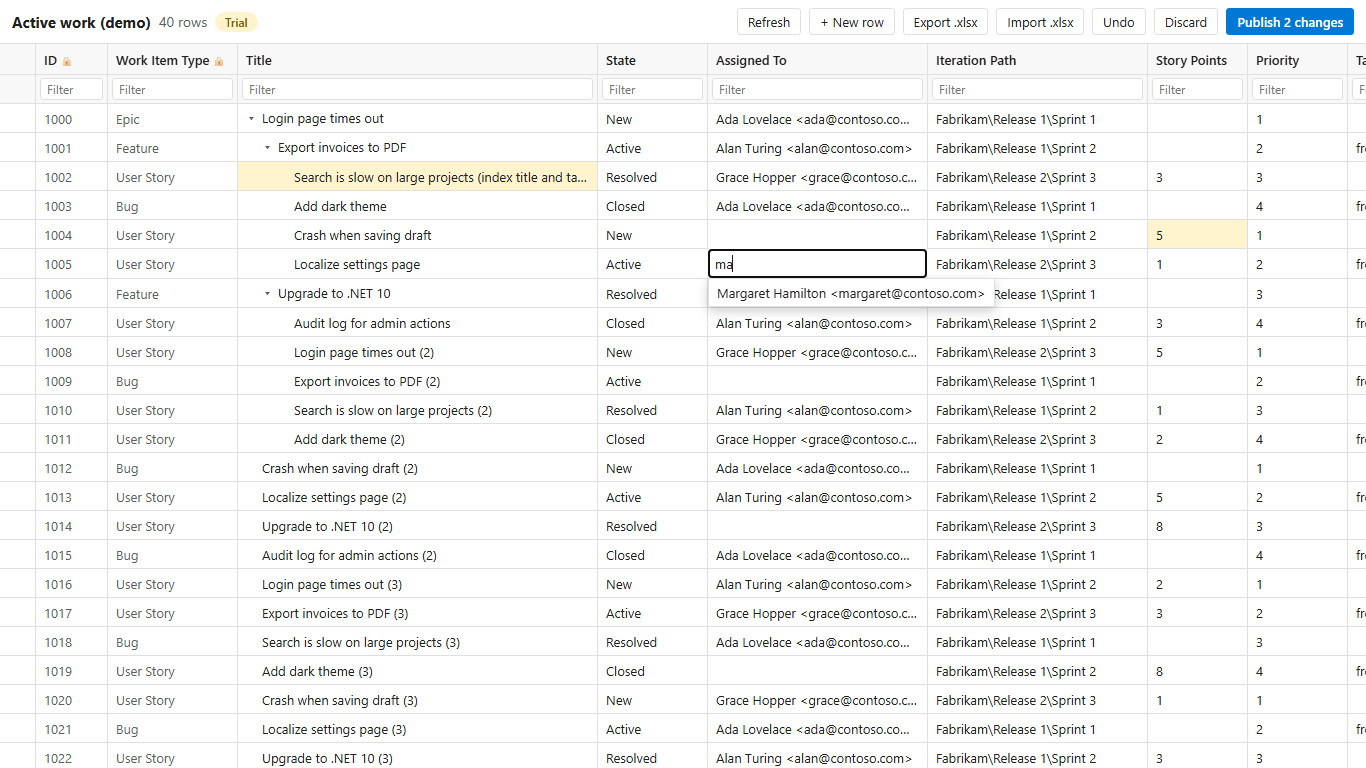
Watch the 1-minute walkthrough on YouTube.
Side by side
| Built-in bulk edit | Open in Excel | CSV import | Bulk Editor | |
|---|---|---|---|---|
| Works on Mac and in the browser | ✔ | – (Windows only) | ✔ | ✔ |
| Nothing to install on your computer | ✔ | – (Office add-in) | ✔ | ✔ |
| Different value per row | – | ✔ | ✔ | ✔ |
| Paste from Excel | – | ✔ (it is Excel) | In a separate file | ✔ |
| Validation before saving | – | ✔ | Only when importing | ✔ |
| Protects a teammate's change | – | ✔ | – | ✔ |
| Price | Free | Free | Free | Free plan; Pro $12/month per organization |
Based on the reviews and Q&A of “Azure DevOps Open in Excel” on the Visual Studio Marketplace and Microsoft's documentation (October 2026).
Which one should you pick?
- Same value on a handful of items: the built-in bulk edit.
- You're on Windows, the add-in works for you and you need formulas: stay with Open in Excel.
- A one-off import of a plan from a spreadsheet: CSV import.
- You're on a Mac, can't install the add-in, or want to edit and validate in the browser: Bulk Editor.
You can try them side by side; installing Bulk Editor doesn't change Open in Excel.
Related guides
- Azure DevOps Excel add-in not working: fixes
- Azure DevOps work items in Excel on a Mac
- How to bulk edit Azure DevOps work items without Excel
- How to edit multiple work items at once in Azure DevOps
- Bulk Editor: features, pricing and free plan