 JR DevTools
How to edit multiple work items at once in Azure DevOps
There are three ways to edit many work items in Azure DevOps at once. Which one fits depends on whether every item gets the same new value, or each row needs its own.
Install from the Marketplace See how it works Watch the 1-minute video
Option 1: Bulk modify in Azure Boards (built in)
In a backlog or in query results, select several work items with Ctrl-click or Shift-click. Open the context menu (the … button or a right-click) and choose Edit. In the dialog, add one or more fields and set a value for each. Azure DevOps applies the same value to every selected item.
The same context menu also lets you change the work item type, move items to another project, assign them to someone, move them to an iteration, and add or remove tags (through Edit).
Limits: one value for all items, so no per-row values. You don't get a preview of the result per item before you save, and rich-text fields such as Description are awkward to change this way.
Option 2: Excel with the Azure DevOps Office Integration
Open a query in Excel and every work item becomes a row, so you can give each one its own value and use formulas, filters and fill-down.
Limits: it needs desktop Excel on Windows and the Office Integration add-in, and it has known issues. If it fails for you, see Azure DevOps Excel add-in not working. On a Mac, read Azure DevOps work items in Excel on a Mac.
Option 3: Bulk Editor, a grid in the browser
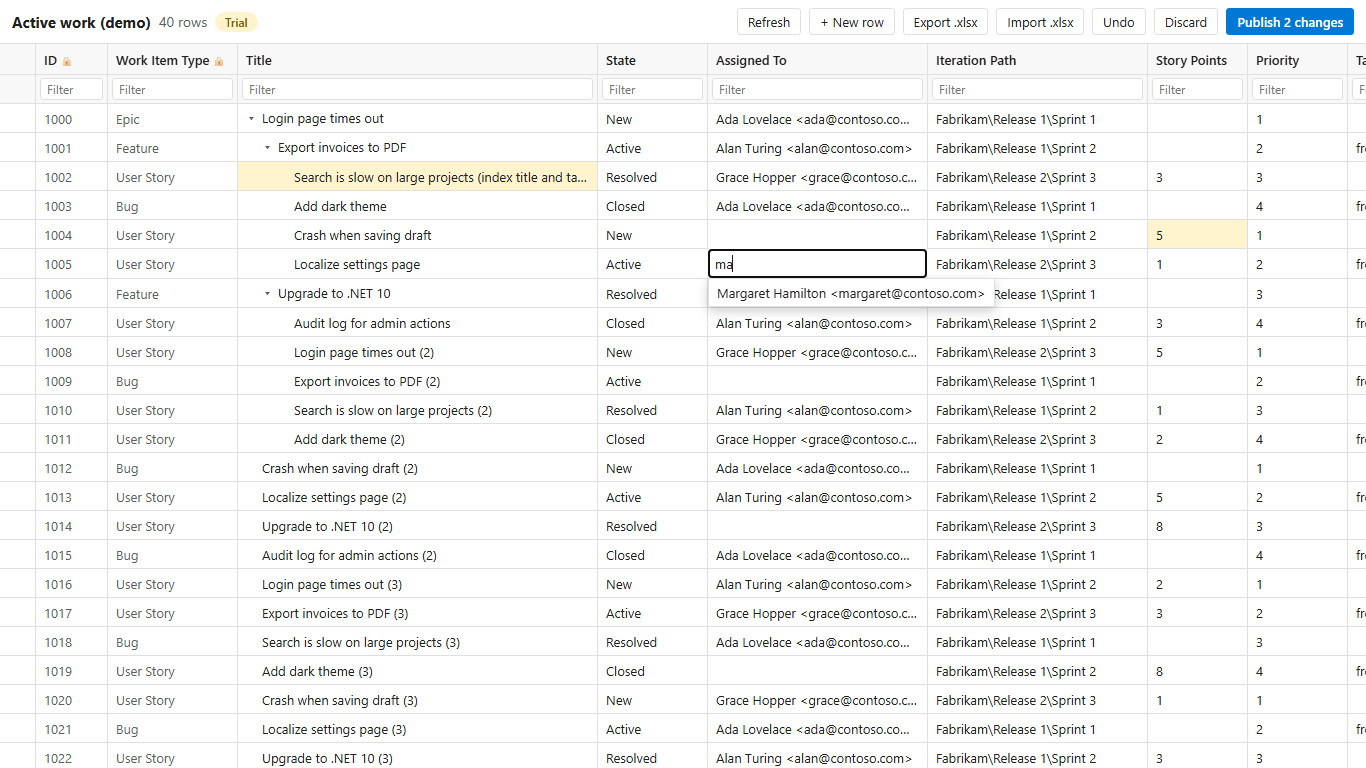
Bulk Editor (made by us) opens a query or a backlog selection in a spreadsheet-like grid inside Azure DevOps. You can edit different values per row, paste a block copied from Excel, and undo. Values are checked against your own process (pick lists, required fields, states and area/iteration paths) before you publish, and nothing is saved until you select Publish.
It works on Mac and Windows, with nothing to install on your computer. There is a free plan, and a 14-day Pro trial starts automatically. Install it from the Marketplace.
Which one should you use?
- Same change for many items (a new iteration, state or assignee): use the built-in Edit in Azure Boards.
- Different values per row and you are on Windows with a working add-in: Excel.
- Different values per row, on a Mac, or without the add-in: a grid in the browser such as Bulk Editor.
- Regular backlog grooming with validation before saving: a grid in the browser.
Looking for more options, such as CSV import? See How to bulk edit Azure DevOps work items without Excel.
Related guides
- How to bulk edit Azure DevOps work items without Excel
- Azure DevOps Excel add-in not working: fixes
- Azure DevOps work items in Excel on a Mac
- Bulk Editor: features, pricing and free plan