 JR DevTools
How to bulk edit Azure DevOps work items without Excel
“Open in Excel” relies on the Azure DevOps Office Integration add-in: Windows only, and a frequent source of TF80012-style errors and Excel crashes. If you're on a Mac, can't install the add-in, or just want it to work, here are three ways to edit many work items at once.
1. Bulk edit in the query results (built in)
In a query or backlog, select several work items (Shift- or Ctrl-click), open the context menu and choose Edit. You can set one or more fields to the same value for all selected items, for example a new iteration, state or assignee.
Good: built in, nothing to install. Limit: every selected item gets the same value, so it doesn't help when each row needs its own estimate, title or tag.
2. CSV export and import (built in)
Run a query, export it with Export to CSV, edit the file in any spreadsheet app, and bring it back with Boards → Work items → Import work items. Rows with an ID update existing items, rows without one create new items.
Good: works on any OS, handles different values per row. Limits: rich-text fields such as Description are exported as raw HTML; errors only show up at import time; and nothing warns you if someone changed a work item after your export.
3. A spreadsheet grid in the browser
Bulk Editor (made by us) opens a query, a backlog selection or any list of work items in a spreadsheet-like grid inside Azure DevOps:
- type in cells, use Enter and Tab, paste a block copied from Excel, and undo;
- pick lists, required fields, states and area/iteration paths come from your own process, and invalid values are flagged before you publish;
- nothing is saved until you select Publish, and a row that someone else changed in the meantime is refused instead of overwritten;
- rich-text fields are never flattened; export to a clean .xlsx without HTML tags;
- Pro: import .xlsx back, add new work items and children, and change parents in tree queries.
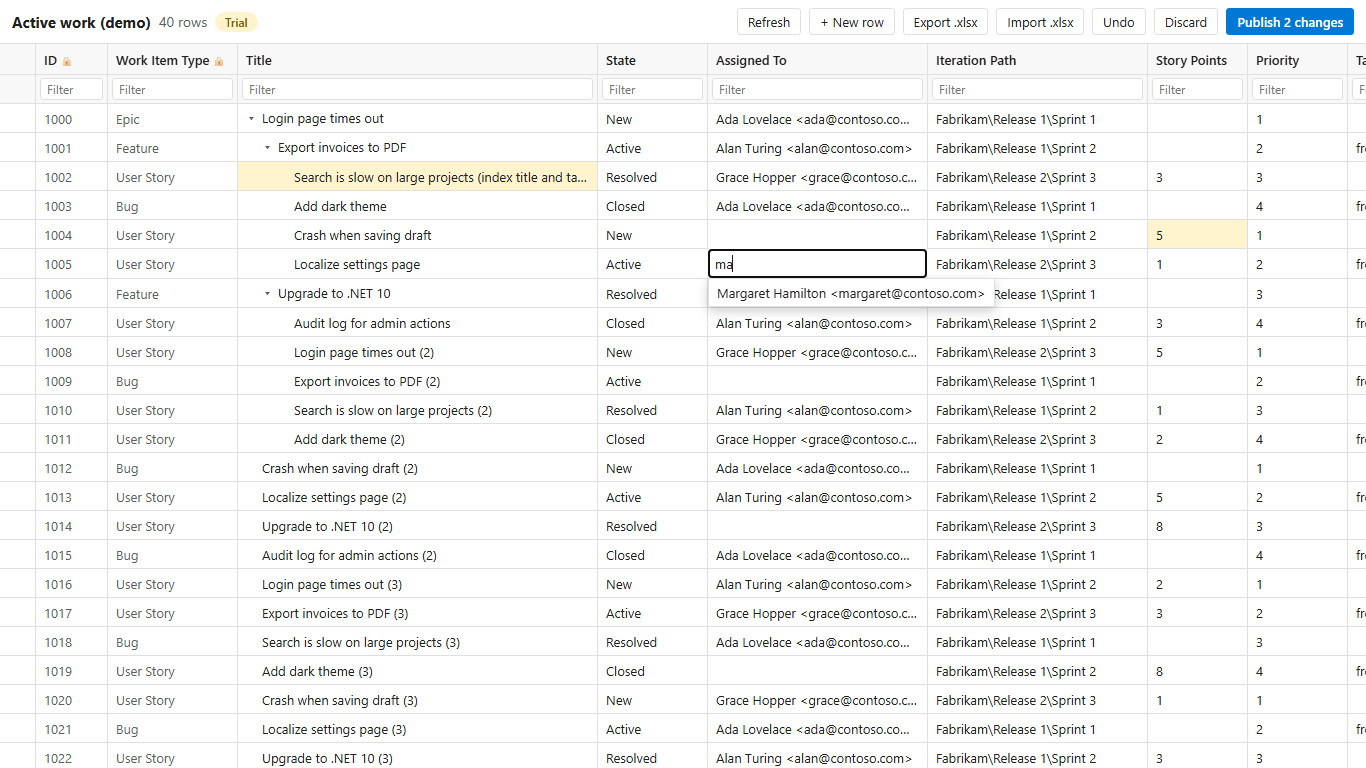
Good: nothing to install on your computer, works on Mac and Linux, different values per row with validation. Limits: Azure DevOps Services only for now; Pro is paid ($12 per organization per month), with a free plan of 25 published work items per organization per month and a 14-day Pro trial.
Which one should I use?
| You want to … | Use |
|---|---|
| Move 40 items to the next sprint | Bulk edit in the query |
| Create a few hundred items once, from a plan someone sent you | CSV import |
| Groom a backlog: different estimates, titles and owners per row, regularly | A grid in the browser |
| Keep working in Excel on Windows with formulas | Open in Excel still does that, if the add-in works for you |