 JR DevTools
How to move child work items to the next sprint in Azure DevOps
The sprint ends, and a Feature or Story still has tasks and stories that are not done. They need to go to the next iteration. Azure DevOps has a few ways to do that, and they differ in how much they handle in one go. Here is what each one does, where it stops, and a quicker way when you also want to check the load of the next sprint.
Install from the Marketplace See how it works
1. The sprint backlog or Taskboard (built in)
Open the sprint under Boards → Sprints, on the Backlog view. Select several items with Ctrl+click or Shift+click, right-click and choose Move to iteration, then pick the next sprint. You can also drag the selection onto a sprint in the Planning pane.
Good: no setup, and you see the sprint you are cleaning up. Limits: you work on one backlog level at a time, so a Story and its Tasks are moved in separate steps. Children do not follow a parent automatically: moving a Story leaves its Tasks in the old sprint. And every selected item gets the same target iteration.
2. A query and bulk edit (built in)
Create a query of type Tree of work items (or Work items and direct links)
with the Feature as the parent. Filter the children on State <>
Done (and Closed or Removed, depending on your process) and on the sprint
you are leaving. Run it, select the rows you want to move, right-click and choose Edit, then
set Iteration Path to the next sprint and save.
Good: it reaches the children of one Feature across levels, and you can save the query for the next sprint. Limits: it sets one value for all selected items, so a sprint split in two needs two rounds. It does not show how much work you are moving: there is no sum of Remaining Work or Story Points, so you check the next sprint's capacity somewhere else.
3. Bulk Editor for Azure DevOps
Bulk Editor is our own extension, so weigh this option accordingly. It opens the same tree query in a spreadsheet-like grid in the browser.
- Open the tree query in Bulk Editor, or select the items in a backlog or query and choose Open in Bulk Editor from the context menu.
- Select the Iteration Path cells of the children you want to move, for example by dragging or with Shift+click.
- Type the next sprint in the top cell and copy it down with Ctrl+D or the fill handle. Items that should stay, or go to a different sprint, are simply left out or get their own value.
- Check the load: next to each parent a muted Σ shows the sum of the Story Points (or Remaining Work) of its children in the grid, updated as you edit.
- Review the highlighted changes and select Publish.
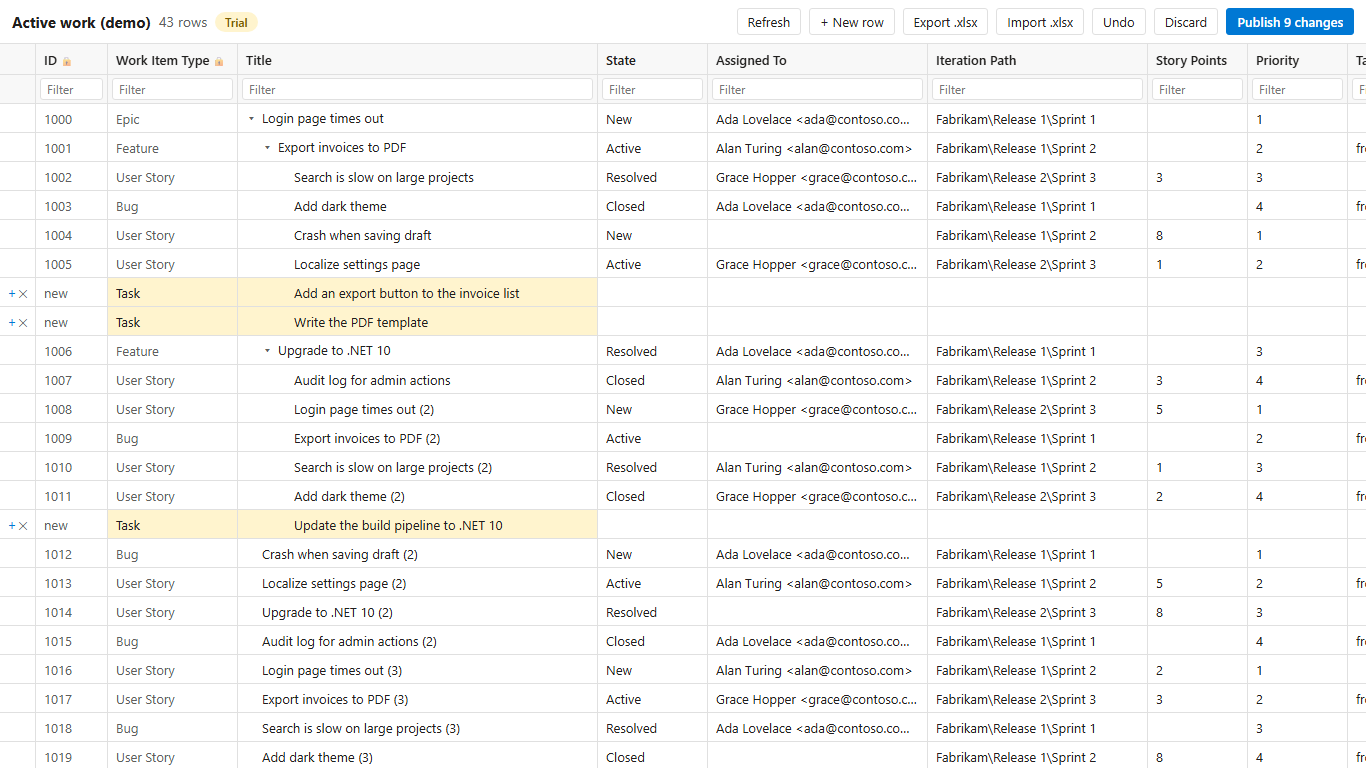
The iteration paths in the grid come from your own project, so a sprint that does not exist is flagged before you publish. Every change is a normal work item revision in your name, and if someone changed an item in the meantime, that row is refused and your edit is kept. It runs in the browser, so it works on a Mac too.
Limits: the sums count the children that are in the grid, so open a tree query that includes them all. Free plan: you can publish changes to 25 different work items per organization per month; Pro is unlimited. Bulk Editor is available for Azure DevOps Services and Azure DevOps Server 2022 or later.
Which option should I pick?
| Situation | Best option |
|---|---|
| A handful of items on one backlog level, all going to the same sprint | Sprint backlog: Move to iteration |
| All unfinished children under a Feature, same target sprint, repeated every sprint | A saved tree query and bulk edit |
| Some items go to the next sprint, others later, and you want to see the load before you save | Bulk Editor |
Related guides
- How to bulk edit Azure DevOps work items without Excel
- How to edit multiple work items at once in Azure DevOps
- How to see the sum of Story Points of child work items in Azure DevOps
- Bulk Editor: features, pricing and free plan