 JR DevTools
How to see the sum of Story Points of child work items in Azure DevOps
You have an Epic or a Feature with a dozen Stories below it and want to know how many Story Points it adds up to. The work item form doesn't tell you, and a backlog shows each item's own value only. Here is what Azure DevOps offers, where it stops, and a quicker way when you are editing estimates in bulk.
Install from the Marketplace See how it works
1. Rollup columns on the backlog (built in)
On a backlog, open Column options and choose Add a rollup column. You can show progress by work items or by Story Points, or the sum of a numeric field such as Story Points, Effort or Remaining Work, for the items below each parent. Rollup columns rely on Analytics, which is on by default in Azure DevOps Services and must be enabled on Azure DevOps Server.
Good: built in, and it works on a whole backlog level. Limits: it is read-only and only on backlogs: the rollup does not appear in query results or on the work item form, and it shows the saved values, not what you are typing right now.
2. Reporting: Delivery Plans, Analytics views and Power BI
For a report to share, Delivery Plans show Features and Epics on a calendar, and Analytics views connect your work items to Power BI, where you can sum Story Points per parent with a measure. This is the right tool for dashboards and status reports, but it takes time to set up and it isn't where you edit the estimates.
3. A query and Excel
Run a query that lists the children, export it with Export to CSV (or use Open in
Excel), and add a SUM over the Story Points column. It works anywhere, but the number is stale
the moment you change an estimate, and a flat list loses the link to the parent unless you add a column for it
and filter or pivot by it.
Where Bulk Editor fits
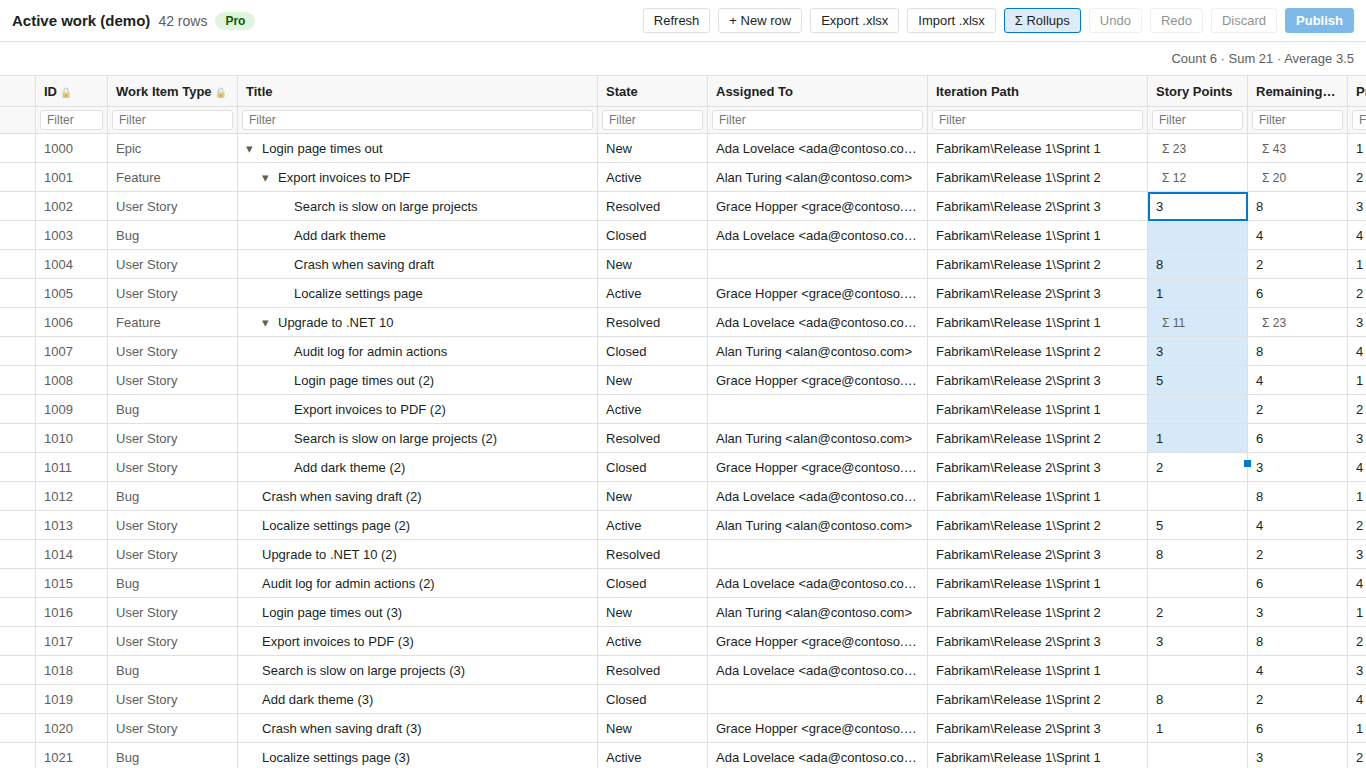
Bulk Editor (made by us) opens a tree query or a backlog selection in a spreadsheet-like grid. Next to a parent's own value it shows a muted Σ with the sum of all its children and grandchildren, for Story Points, Remaining Work, Effort, Original Estimate, Completed Work and Size.
- The sums update while you edit, paste or move items, so you see the effect of a change before you publish.
- They count the children that are in the grid, including rows hidden by a filter.
- Switch them off with the Σ Rollups button.
- Rollups are on the free plan.
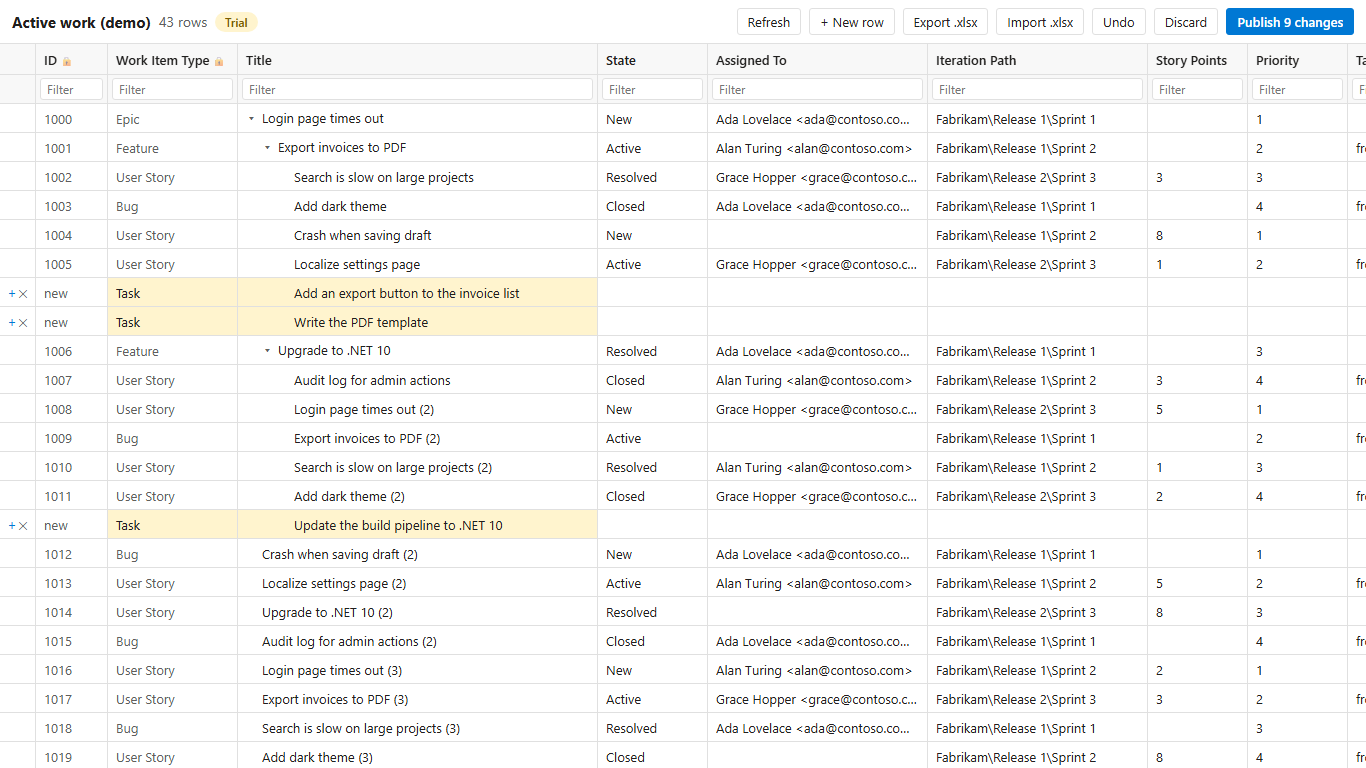
You can also select any block of cells, for example the Story Points of five Stories, and the status line shows the count, sum and average of the selection.
Limits: the rollup adds up the children that are in the grid, so open a tree query that includes them all, and the Excel export contains the field values, not the sums. Bulk Editor is available for Azure DevOps Services and Azure DevOps Server 2022 or later.
Which option should I pick?
| Situation | Best option |
|---|---|
| A quick look at progress on the backlog | A rollup column |
| A report or dashboard for stakeholders | Delivery Plans, or an Analytics view with Power BI |
| A one-off number, and you are fine with a spreadsheet | Query, export and SUM |
| Estimating or re-planning, and you want to see the total while you type | Rollups in Bulk Editor |
Related guides
- How to bulk edit Azure DevOps work items without Excel
- How to edit multiple work items at once in Azure DevOps
- Bulk Editor: features, pricing and free plan