 JR DevTools
How to update a pull request with the target branch in Azure DevOps
Your branch has fallen behind main: the Branches page says something like 6 behind,
2 ahead, and you want the latest changes in your pull request. GitHub has an Update branch button.
Azure DevOps doesn't, so you do it with Git, or with a pull request the other way round. Here are the options,
what behind and ahead mean, and what to do when a policy answers “Pushes to this branch are not permitted;
you must use a pull request to update this branch.”
Install from the Marketplace See how it works Watch the 1-minute video
What “behind” and “ahead” mean
Under Repos → Branches, Azure DevOps shows how many commits each branch is ahead of and behind
the branch labeled Compare, normally your default branch such as main. Change the
comparison with More actions → Set as compare branch.
- 6 behind:
mainhas 6 commits that your branch doesn't have. - 2 ahead: your branch has 2 commits that
maindoesn't have. That is your work.
To align the branch you bring those 6 commits into it, so it is 0 behind. Ahead stays above 0 until your work is
merged, and a merge adds one merge commit to it. A branch whose pull request was completed with a squash merge
also keeps showing commits as ahead, because the squash created a new commit in main instead of
keeping yours.
You don't have to align the branch to complete a pull request: Azure DevOps merges the source branch into the
target when you complete it. Update when the pull request shows merge conflicts, or when you want to build and
test your work on top of the latest main.
Option 1: merge the target branch into your branch
The closest thing to GitHub's Update branch. Replace feature/my-branch and
main with your source and target branch.
git fetch origin
git checkout feature/my-branch
git pull
git merge origin/main
# resolve any conflicts Git reports, then:
git add .
git commit
git push
The branch is now 0 behind, and the push gives the pull request a new iteration and starts a new test merge. In Visual Studio, check out your branch and merge the target branch from Git → Manage Branches. More about conflicts in how to resolve merge conflicts in an Azure DevOps pull request.
Option 2: rebase onto the target branch
git fetch origin
git checkout feature/my-branch
git rebase origin/main
# resolve any conflicts, then: git add . && git rebase --continue
git push --force-with-lease
This gives a straight history without a merge commit, but it rewrites your commits and needs a force-push, which requires the Force push permission on the branch. Don't do it on a branch other people also push to, and a branch policy may reset approvals on the new push.
Option 3: a pull request the other way round, without a clone
You can update a branch in the browser with a pull request from main into your branch:
- Open Repos → Pull requests → New pull request.
- Choose
mainas the source and your feature branch as the target. The Switch source and target branches icon swaps them, until you create the pull request. - Create it and complete it with a merge.
Your branch then contains a merge commit with the latest main. Conflicts block this pull request like
any other, branch policies on your branch apply to it, and it leaves an extra pull request in the history.
“Pushes to this branch are not permitted”
The full message is TF402455: Pushes to this branch are not permitted; you must use a pull request to update this branch. It means a branch policy is set on that branch, so even a merge commit has to arrive through a pull request.
A typical case: a pull request from main into dev has a conflict in
README.md. A conflict has to be fixed in the source branch, but main is
protected, so you can't push the merge there. Use a temporary branch as the new source:
git fetch origin
git checkout -b merge/main-into-dev origin/dev
git merge origin/main
# fix README.md, then:
git add README.md
git commit
git push -u origin merge/main-into-dev
Open a new pull request from merge/main-into-dev into dev. The conflict is already
resolved in that branch, so it merges cleanly. Abandon the old pull request. You can also branch from
main and merge dev into it; the result is the same.
Where Merge Conflict Resolver fits
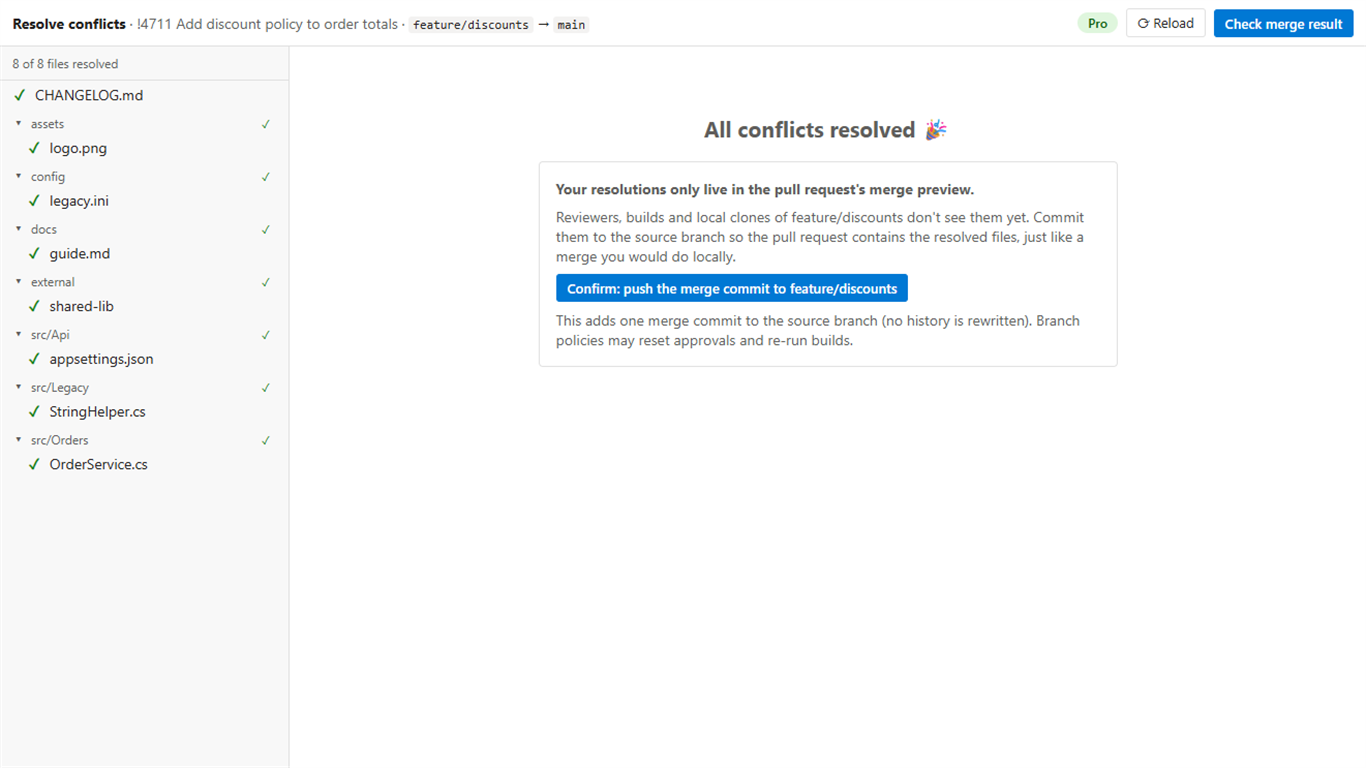
Merge Conflict Resolver (made by us) is not an Update branch button: it has nothing to do for a pull request without conflicts. It helps when bringing in the target branch produces a conflict and you'd rather not clone the repository to fix it. It adds a Resolve conflicts tab with a 3-way merge editor:
- Open the pull request, select Resolve conflicts and resolve each file.
- When the last file is done, Azure DevOps creates the merge with your resolutions. Complete the pull request as usual. Nothing is pushed to your branches, so this also works when they are protected by policies.
- Optional (Pro): Commit to the source branch fast-forwards the source branch to that merge commit, which has the target and the source as parents. In effect that is Option 1 done in the browser: the target is merged into the source branch, and reviewers, builds and local clones see it.
In the example above you would resolve README.md in the tab and complete the pull request into
dev, without pushing to main or dev. Skip Commit to the source
branch when the source is protected: if a policy blocks direct pushes, the commit is refused with a clear
message and your resolutions stay in the pull request. Without that commit, the resolution lives in the pull
request's merge, and your branch itself stays behind. It is always a fast-forward, never rewrites history, and is
refused if someone pushed in the meantime. It isn't available for pull requests from a fork.
There's a free plan (10 pull requests per organization per month, all conflict types) and a 14-day Pro trial; the commit to the source branch is a Pro feature. It supports Azure DevOps Services and Azure DevOps Server 2022 or later; see Azure DevOps Server.
Install Merge Conflict Resolver
Which option should I pick?
| Situation | Best option |
|---|---|
| Your own branch, repository cloned | Merge locally (Option 1) |
| Nobody else uses the branch and you want a straight history | Rebase (Option 2) |
| No clone at hand, no conflicts, branch not protected | Pull request the other way round (Option 3) |
| A policy blocks pushes (TF402455) | Temporary branch and a new pull request, or resolve in the pull request |
| A few conflicting lines, or someone else's pull request | In the browser with Merge Conflict Resolver |
Related guides
- How to resolve merge conflicts in an Azure DevOps pull request
- Azure DevOps pull request stuck on “Checking for merge conflicts”
- How to resolve rename conflicts in an Azure DevOps pull request
- Merge Conflict Resolver: features, pricing and free plan