 JR DevTools
How to resolve merge conflicts in an Azure DevOps pull request
Your pull request says “Merge conflicts. Next steps: Manually resolve these conflicts and push new changes to the source branch.” Azure DevOps has no built-in conflict editor, so you have two options: resolve locally with Git, or resolve in the browser with an extension.
Why the conflict happens
Azure DevOps tries a test merge of your source branch into the target branch (for example main).
When both branches changed the same lines of a file, or one deleted a file the other changed, Git can't decide
which version wins. The pull request can't be completed until the conflict is resolved in the
source branch.
Option 1: resolve locally with Git
This works everywhere and needs nothing but Git and an editor. Replace feature/my-branch and
main with your source and target branch.
git fetch origin
git checkout feature/my-branch
git pull
git merge origin/main
# Git lists the conflicted files. Open each one, resolve the
# <<<<<<< / ======= / >>>>>>> blocks, then:
git add .
git commit
git push
After the push, the pull request updates and the conflict is gone. A few tips:
- Use a 3-way merge editor instead of editing markers by hand: VS Code's merge editor, Visual
Studio's Git Changes → Merge conflicts, or
git mergetool. - Prefer merge over rebase for a branch others also use: a rebase rewrites history and needs a force-push, which can reset approvals and surprise teammates.
- Watch your encodings. Files in Windows-1252/ANSI or UTF-16 can be damaged by editors that assume UTF-8. Check the diff before you push.
- If Azure DevOps keeps showing “Checking for merge conflicts” after the push, refresh the page; the test merge runs again for every new commit.
Option 2: resolve in the browser
Cloning a large repository just to fix two lines is slow, and not everyone who reviews or completes pull requests has the repository locally. An extension can add a conflict editor to the pull request page.
Microsoft's DevLabs Pull Request Merge Conflict Extension used to be the usual choice, but it hasn't been updated since November 2023 and Microsoft says there are no development resources for it. See alternatives to the DevLabs extension.
Merge Conflict Resolver (made by us) adds a Resolve conflicts tab to every pull request:
- Open the pull request and select the Resolve conflicts tab.
- Pick a file. Target, source and result are shown side by side; non-conflicting changes are already merged.
- Above each conflict, choose Accept target, Accept source or Accept both, or edit the result freely.
- Select Mark as resolved. When the last file is done, Azure DevOps creates the merge with your resolutions.
- Optional (Pro): Commit the resolution to the source branch, so reviewers, builds and branch policies see exactly what will be merged.
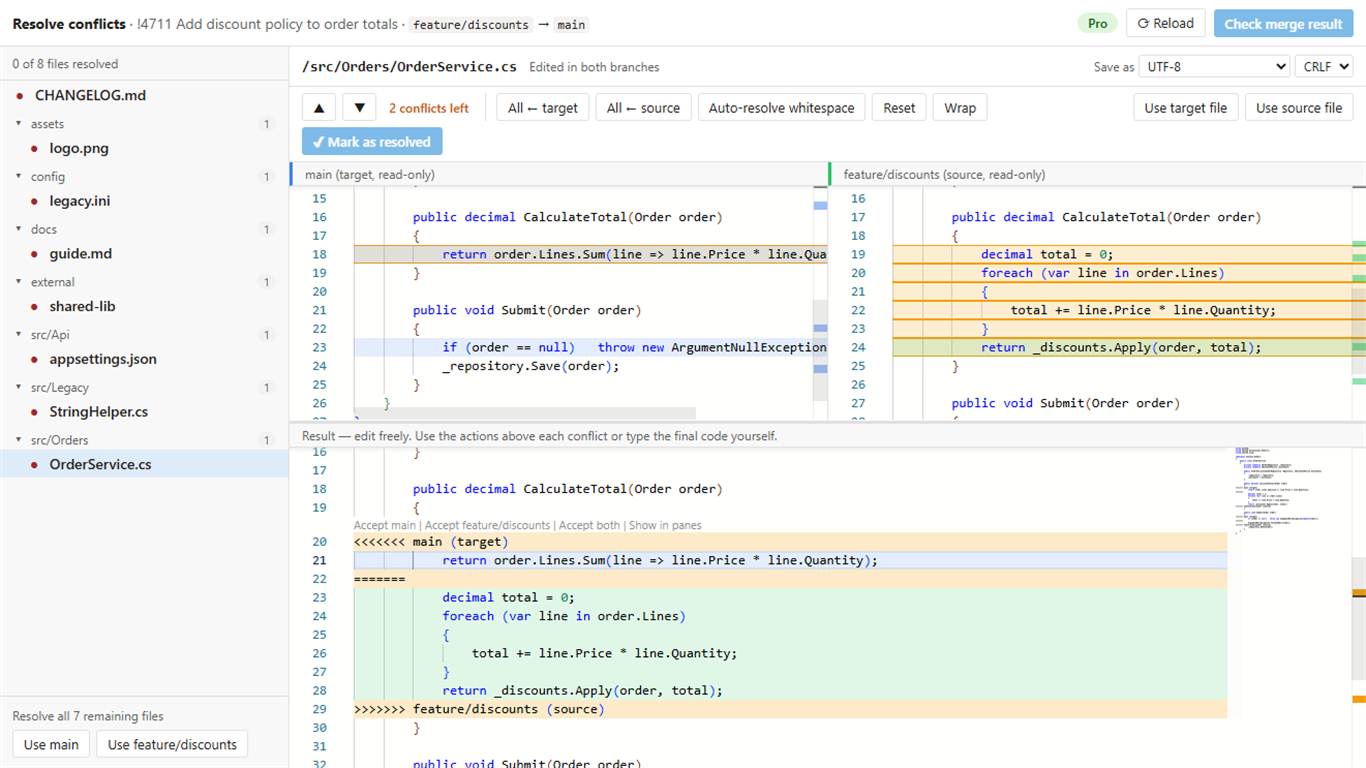
Your edits are saved as a draft in the browser, so a reload doesn't lose work, and encodings and line endings are written back exactly as they were. There's a free plan and a 14-day Pro trial.
Which option should I pick?
| Situation | Best option |
|---|---|
| Complex conflict that needs building or running tests before you push | Locally |
| A few conflicting lines, or you don't have the repository cloned | In the browser |
| Someone else's pull request that you're reviewing or completing | In the browser |
| Hundreds of conflicts where one side should simply win | Either: git checkout --theirs / --ours locally, or bulk resolve in the browser |