 JR DevTools
How to resolve rename conflicts in an Azure DevOps pull request
Your pull request has conflicts on files that were renamed: a file got a different name in each branch, was renamed in one branch and deleted or edited in the other, or two files ended up with the same name. Git treats each case differently. Here is how renames are detected, what each conflict means, and how to resolve it locally or in the browser.
Install from the Marketplace See how it works Watch the 1-minute video
How Git and Azure DevOps see a rename
Git doesn't record renames. When it merges, it compares each branch with the merge base and treats a deleted file plus a new file as a rename when the two are similar enough: about 50% by default. The Files tab of a pull request also detects renames and marks such a file as renamed.
The pull request itself only says “Manually resolve these conflicts and push new changes to the source branch.” The resolution happens in Git, or in an extension. See how to resolve merge conflicts in an Azure DevOps pull request for the general flow.
Resolve locally with Git
Merge the target branch into the source branch. Replace feature/my-branch and main with
your source and target branch.
git fetch origin
git checkout feature/my-branch
git pull
git merge origin/main
git status    # lists every conflicted path
# resolve each conflict as described below, then:
git commit
git push
git merge --abort returns to the state before the merge if you want to start over.
Renamed in both branches (rename/rename)
The same file got a different name in each branch. Git can't pick one and reports:
CONFLICT (rename/rename): src/Helper.cs renamed to src/Helpers.cs in HEAD and to src/MathHelper.cs in main.git status lists the old path as both deleted and the two new paths as added by us
and added by them. Both new files contain the merged content, including edits from the other branch, so
you only have to choose a name: remove the old path and the name you don't want, and add the one you keep.
git rm src/Helper.cs src/MathHelper.cs
git add src/Helpers.cs
If both branches renamed the file to the same name, there is no rename conflict. Only edits to the same lines still conflict.
Renamed in one branch, edited in the other (rename/edit)
When Git recognizes the rename, there is no conflict at all: the edit is applied to the renamed file. If both branches changed the same lines, you get an ordinary content conflict in the file under its new name.
The trouble starts when the renamed file was also changed a lot, so it is less than about 50% similar to the original. Git then sees a deleted file and a new file, and the edit becomes a delete/edit conflict, which in a pull request usually shows as a file edited in one branch and deleted in the other:
CONFLICT (modify/delete): src/Old.cs deleted in HEAD and modified in main. Version main of src/Old.cs left in tree.Two ways out:
- Make Git see the rename. Abandon the merge and retry with a lower similarity threshold:
git merge --abort, thengit merge -X find-renames=30% origin/main. The edit is then applied to the renamed file. - Carry the edit over by hand. Copy the other branch's changes from the old file into the
renamed one, then
git rm src/Old.cs.
To avoid this, rename a file in a commit of its own, without other edits. A pure rename is recognized reliably.
Renamed in one branch, deleted in the other (rename/delete)
One branch moved the file, the other removed it. Git leaves the renamed file in your working tree and reports:
CONFLICT (rename/delete): src/Old.cs renamed to src/New.cs in HEAD, but deleted in main.Decide whether the file should survive. Keep it with git add src/New.cs, or delete it with
git rm src/New.cs. Microsoft's guide to
resolving Git merge
conflicts describes the same git add / git rm choice for files deleted in one branch
and modified in the other.
Two files with the same name (rename/add)
One branch renames a file to a name the other branch adds, or both rename different files to the same name. Git
reports CONFLICT (add/add): Merge conflict in … and puts conflict markers in the file. Decide which
item keeps the name (git checkout --ours <file>, --theirs, or a merge editor), save
the other one under a new name, and git add both.
Renaming files while you resolve
Locally you can rename as part of the merge: resolve the conflict, run git mv old new, and commit. It
is cleaner to do it in a separate commit afterwards, so the rename stays easy for Git to recognize the next time
the branches merge.
In the browser the choice is narrower: you pick one of the existing names, or keep both. Only when two items want the same path can you type a new path for the one that moves aside. Any other rename is a normal commit after the merge.
Resolve in the browser with Merge Conflict Resolver
Merge Conflict Resolver (made by us) adds a Resolve conflicts tab to the pull request. Renames can't be merged line by line, so each one gets a choice of its own, and Pro's bulk action Resolve all remaining files leaves them for you and says how many need your choice. The free plan covers all conflict types.
- Renamed to different names in both branches: Use the source branch's name, Use the target branch's name or Keep both files, which keeps both paths.
- Renamed in one branch, deleted in the other: Keep the file, shown at its new path, or Delete the file.
- Two items for the same path (renamed to or added at the same path, or a file against a directory): keep one and either discard the other or move it to a path you type; a suggested name is filled in.
When the last file is resolved, Azure DevOps creates the merge with your resolutions and you complete the pull request as usual. With Pro you can also commit the resolution to the source branch, so reviewers and builds see it. It supports Azure DevOps Services and Azure DevOps Server 2022 or later; see Azure DevOps Server.
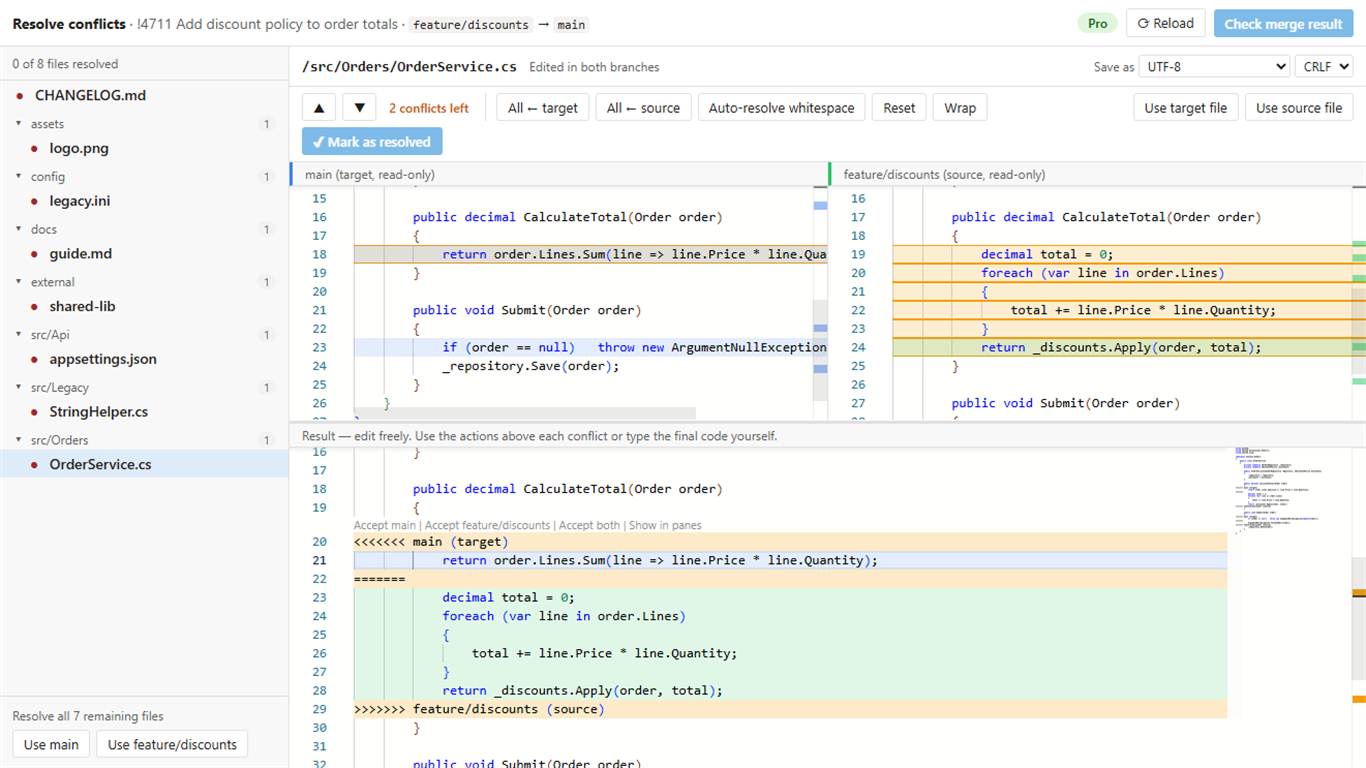
One limit: in the browser you can keep or delete a file, but not move edits from an old file into its renamed copy. For the undetected rename above, do that locally. There's a free plan (10 pull requests per organization per month) and a 14-day Pro trial.
Install Merge Conflict Resolver
Which option should I pick?
| Situation | Best option |
|---|---|
| A file renamed differently in each branch, and you know which name should win | Either: git rm / git add locally, or in the browser |
| Renamed in one branch, deleted in the other | Either |
| A rename Git doesn't recognize, and edits that must be carried over | Locally |
| Someone else's pull request that you're reviewing or completing | In the browser |
| A big refactoring with many moved files that you need to build and test | Locally |
Related guides
- How to resolve merge conflicts in an Azure DevOps pull request
- How to update a pull request with the target branch in Azure DevOps
- Alternatives to the DevLabs Pull Request Merge Conflict Extension
- Merge Conflict Resolver: features, pricing and free plan